
Setting up OpenWebUI: Open Source AI Chat for you or your company
Listen to this post
On this page
- What is OpenWebUI?
- Why consider OpenWebUI?
- How to deploy OpenWebUI?
- Server configuration
- Step 1: Prepare your VM
- Step 2: Set Up Docker Compose
- Step 3: Configure Security
- Step 4: Start the Service
- Step 5: Access and Configure
- Step 6: Setup Your Models and Knowledge Base
- Alternative: Using Coolify
- Some Security Considerations
- Final Thoughts
Open source AI is quickly catching up to its proprietary counterparts. Next to open source models, AI applications are also becoming more and more powerful and flexible.
Beyond cost, the flexibility of open source solutions gives you control over your data, privacy, and customization options. You can modify, extend, and integrate these tools in ways that closed systems simply don't allow. This becomes particularly valuable when you need specialized capabilities or want to incorporate AI into existing workflows.
That's why I, and a lot of other with me, have been experimenting with OpenWebUI, and thought I'd share my experience setting it up.
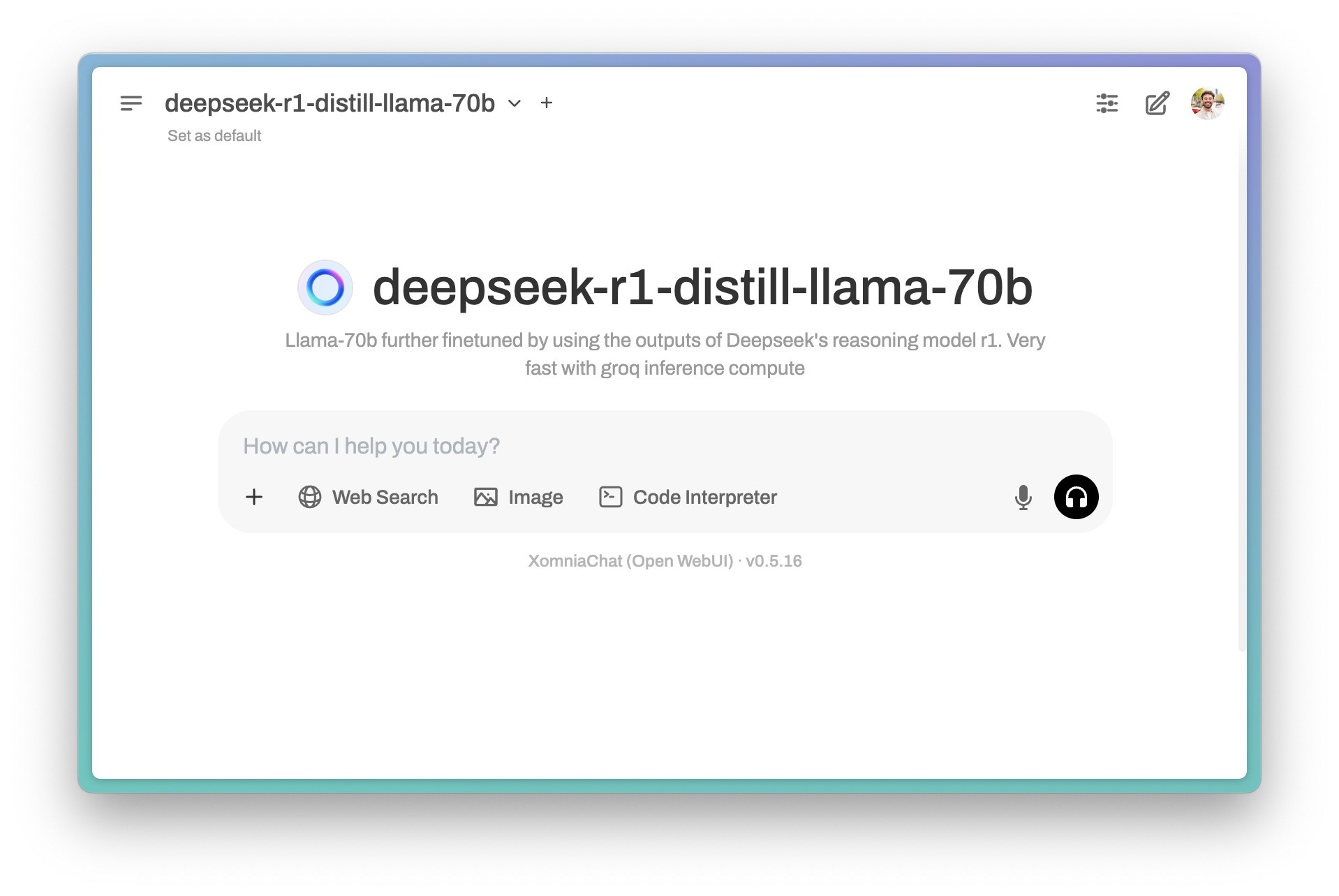
What is OpenWebUI?
OpenWebUI is an open source web interface for interacting with AI models. The application has a frontend like ChatGPT and a Python backend that is easy to use. It's a great way to get started with AI and build your own custom solutions.
A common misconception is that you need to run local models to use something like OpenWebUI. That's not true at all. While you can connect it to locally-hosted models (via Ollama, for example), you can just as easily hook it up to commercial APIs through services like OpenRouter.ai, or directly to providers like OpenAI, Anthropic, or Google.
Why consider OpenWebUI?
What makes OpenWebUI particularly useful for organizations is how it handles knowledge management. The platform makes it straightforward to set up custom RAGs (Retrieval Augmented Generation) and specialized assistants that can access your company's private documents and data.
The access management is surprisingly simple too. You can configure user groups, implement single sign-on, and control who has access to which models and features without much fuss.
For me, the main appeal is giving employees a consistent interface to interact with AI models in a way that's secure and cost-effective. Instead of everyone having separate commercial AI accounts (with separate billing!), you can centralize everything.
Cost management becomes much clearer. You're in control of which models are used, how they're used, and you don't have to deal with subscription fees or business licenses - just the actual usage costs of whatever API you're connecting to (if any).
There's also a learning component here. Getting your developers familiar with deploying open source applications is valuable experience. It's good practice for working outside the ecosystem of the big three US cloud providers, which builds resilience and flexibility into your team's skillset.
I've noticed that creating custom full-stack software has become remarkably accessible these days. Between modern frameworks, containers, and open source components, the barrier to entry for building your own solutions has dropped dramatically. That's why I suspect the SaaS model might not remain as profitable as it has been - when building your own becomes this easy, paying ongoing subscriptions makes less sense for many use cases.
How to deploy OpenWebUI?
Setting up OpenWebUI is pretty straightforward. The only thing you need is a server with Docker installed.
You can also set it up on a container service provider like Azure Web Apps or AWS ECS, but this will cost you more and you won't need it (unless you need to scale your application to thousands of users).
Some considerations upfront: - Number of concurrent users - Maintenance and version updates - Data privacy and security - Cloud costs
Server configuration
I used a basic VM from Hetzner (a European cloud provider), because they are a lot cheaper than other providers (like Azure or AWS):
- CPX21 | x86 | 80 GB | eu-central
This is enough for most use cases, but you need more if you want to run models locally.
- Create a project
- Create a firewall rule to allow HTTP (TCP/80) and HTTPS (TCP/443) + SSH (TCP/22)
- Inbound HTTP
- Any IPv4, IPv6
- Protocol: TCP
- Port: 80
- Inbound HTTPS
- Any IPv4, IPv6
- Protocol: TCP
- Port: 443
- Inbound SSH
- {your_ip}
- Protocol: TCP
- Port: 22
- Create resource / Servers -> Add server - Set location - Set image (pick Apps -> Docker CE) - Type: shared CPU - CPX21 - Networking: leave at public IPv4 and public IPv6 - SSH keys: add your SSH key - Firewall: add the firewall rule you created in step 2 - Name: openwebui-server (or anything else)
Step 1: Prepare your VM
After creating your VM, SSH into it:
ssh user@your-server-ip
You can use VSCode to SSH into your server and see the file structure: - Install the SSH extension - Connect to your server - Open the folder where you want to deploy OpenWebUI
If they're not already available, install Docker:
sudo apt update && sudo apt upgrade -y
sudo apt install docker.io docker-compose -y
sudo systemctl enable docker
sudo systemctl start docker
Step 2: Set Up Docker Compose
Make a directory for the project:
mkdir openwebui && cd openwebui
Create a docker-compose.yml file:
nano docker-compose.yml
Here's a basic configuration to get started:
version: '3'
services:
  openwebui:
    image: ghcr.io/open-webui/open-webui:main
    container_name: openwebui
    restart: always
    ports:
      - "3000:3000"
    environment:
      - OPENWEBUI_BASE_URL=http://localhost:3000
      - OPENWEBUI_DEFAULT_MODELS=openai/gpt-3.5-turbo
      - OPENWEBUI_ADMIN_PASSWORD=change-this-password
      - OPENWEBUI_AUTH_SECRET=generate-a-64-character-key
    volumes:
      - ./data:/app/backend/data
If you want to use local models via Ollama, you can add that service:
  ollama:
    image: ollama/ollama:latest
    container_name: ollama
    restart: always
    volumes:
      - ./ollama:/root/.ollama
And then update the OpenWebUI service to include:
environment:
  - OLLAMA_API_BASE_URL=http://ollama:11434/api
Step 3: Configure Security
Two environment variables are particularly important for security:
-
OPENWEBUI_ADMIN_PASSWORD: Set this to a strong password for the admin account -
OPENWEBUI_AUTH_SECRET: This needs to be a long, random string. Generate one with:
openssl rand -hex 32
Copy the output and use it as your auth secret.
Step 4: Start the Service
Launch everything with:
docker-compose up -d
Verify it's running:
docker-compose ps
Step 5: Access and Configure
You can now access OpenWebUI at http://your-server-ip:3000
For proper production use, I'd recommend setting up Nginx with SSL:
sudo apt install nginx certbot python3-certbot-nginx -y
Create a basic Nginx config:
sudo nano /etc/nginx/sites-available/openwebui
With content like:
server {
    listen 80;
    server_name your-domain.com;

    location / {
        proxy_pass http://localhost:3000;
        proxy_set_header Host $host;
        proxy_set_header X-Real-IP $remote_addr;
        proxy_set_header X-Forwarded-For $proxy_add_x_forwarded_for;
        proxy_set_header X-Forwarded-Proto $scheme;
    }
}
Enable and secure it:
sudo ln -s /etc/nginx/sites-available/openwebui /etc/nginx/sites-enabled/
sudo certbot --nginx -d your-domain.com
sudo nginx -t && sudo systemctl reload nginx
Step 6: Setup Your Models and Knowledge Base
Once logged in as admin, you can:
- Add API connections to services like OpenAI, Anthropic, or OpenRouter
- Configure local models if you're using Ollama
- Upload documents to create knowledge bases
- Set up user accounts and permissions
Alternative: Using Coolify
If you prefer a more managed approach, Coolify makes deployment even simpler:
- Install Coolify on your server
- Create a new service and select "Docker Compose"
- Use the same compose configuration from above
- Deploy with a few clicks
Some Security Considerations
- Change the default admin password immediately
- Generate a strong auth secret and keep it secure
- Always use HTTPS in production
- Consider network restrictions (firewall, VPN) for sensitive deployments
- Back up your data directory regularly:
bash tar -czf openwebui-backup-$(date +%Y%m%d).tar.gz ./data - Keep your installation updated:
bash
  docker-compose pull
  docker-compose up -d
Final Thoughts
OpenWebUI isn't perfect, but it represents something important - the democratization of AI tools. You don't need to be locked into specific vendors or platforms to give your team access to powerful AI capabilities.
What I appreciate most is the flexibility. As the AI landscape evolves and new models emerge, you can adapt without migration headaches or vendor lock-in. That kind of freedom is worth the small effort of setting up your own infrastructure.